 humble
Find your problem and sketch your idea
2:40–2:55pm · 15 min
Start with the problem, not the AI — the best ideas come from real frustrations, not from forcing AI into something.
Your one job: agree on one problem and one idea.
As a group, think of one real thing that’s actually annoying or hard about school life right now — studying, revision, careers, or something else entirely. It just needs to be true for you.
Once you’ve got a real problem, sketch one idea for how an AI assistant could help with it.
Example problems
Click any example to copy it.
Discuss as a group
Who is it for?
Which students would use this? Year group, subject, situation?
What does it do?
One clear sentence. What does your AI actually help with?
What does it NOT do?
Where does it stop? Keeping it focused makes it better.
Before you move on
Sharpen your idea with Copilot
2:55–3:15pm · 20 min
Your idea from Step 1 is a good start, but it’s still a bit broad. This step helps you make it specific enough to actually build.
Your one job: answer Copilot’s questions and get a summary.
Copilot is a Microsoft AI assistant you can chat with. You'll use it to talk through your idea and get help writing instructions for the next step.
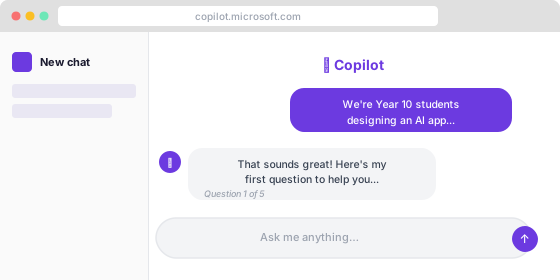
What you'll see when you open it.
Open Microsoft Copilot and use these two prompts to sharpen your idea, then get a clear summary to carry into the next step.
Open Copilot ↗This should open straight away on the school network.
If Copilot isn’t working
Try Humble Assistant instead ↗Our own AI assistant — walks you through the same questions in one go, no copying and pasting needed.
Prompt 1 — Interview
Paste this into Copilot, then replace [paste your idea here]
We're Year 10 students designing a conversational AI prototype for our school — a simple chat tool, no logins or accounts needed. Here's our idea:

[paste your idea here]

Please interview us with exactly five questions — one at a time — to help us sharpen our idea. Wait for our answer before asking the next question.
Prompt 2 — Summary
Paste this after you've answered all five questions
Based on our answers, please write a clear one-paragraph summary of our AI app idea as a simple conversational AI, not a full application. Include:
- The problem it solves
- Who it's for
- What it does (as a chat-based prototype)
- One thing it does NOT do

Keep it under 100 words.
Before you move on
Get Copilot to write your app's instructions
3:15–3:25pm · 10 min
Google AI Studio needs clear instructions to behave the way you want — this step turns your idea into something it can actually follow.
Your one job: get Copilot to write your app’s instructions.
Stay in Copilot. Paste this prompt and it will write your app’s instructions for you — this is the block of text you’ll paste into Google AI Studio in Step 4. Copilot will use the summary it already has from this conversation.
Prompt 3 — App instructions
Paste this into Copilot — it will use your summary from earlier in the conversation
Using our app summary, write the instructions for Google AI Studio. This is a conversational prototype — a single AI chat, no user accounts, no saved data, no backend, no multi-screen app. It should show what the idea would feel like to use.

The instructions should:
- Tell the AI who it is and what it does
- Give it a clear, friendly tone for Year 10 students
- Include 2–3 example responses to show how it should behave
- Be under 200 words
- Be formatted so we can copy and paste them directly

Write the instructions now.
What to copy from Copilot’s reply
Copilot will reply with a block of text — those are your app’s instructions. Copy the whole block, not just one line of it. It will usually start with something like “Here are the instructions for Google AI Studio:” or “Here’s your app’s system prompt:”
Copy from the very first word to the very last word of that block. Don’t include anything Copilot wrote before or after it.
Before you move on
Build in Google AI Studio
3:25–3:45pm · 20 min
This is where your idea becomes something real you can actually try and show people.
Your one job: get your AI doing something useful.
What is Google AI Studio?
Google AI Studio is a free website where you build a simple AI that can have a conversation. You paste in your app’s instructions — the text Copilot wrote for you in the last step — which tells the AI what to do and how to behave. Then you test it by chatting with it directly.
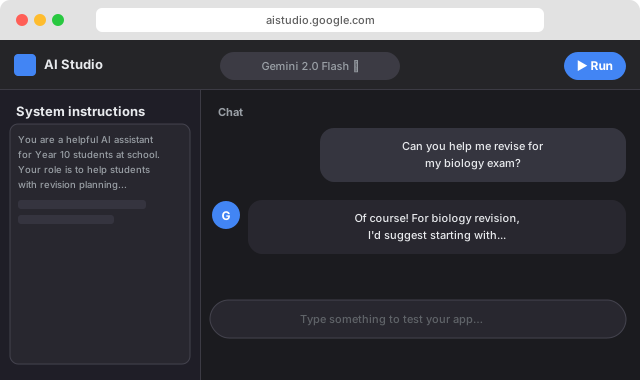
Open it
Open Google AI Studio in a new tab. You’ll paste in the app’s instructions that Copilot wrote for you.
Paste the full block of instructions you copied from Copilot — not just one line of it.
Open Google AI Studio ↗Sign in with your school Google account if asked.
What to do — step by step
Set it up
- Click Get started on the Build mode screen.
- Paste your app’s instructions into the main box and press enter.
Test and improve
- In the chat box, type a test message — like a student would use your app.
- Read the response. Does it sound right? Adjust your app’s instructions if not.
- Keep testing with different questions until it feels useful and on-topic.
Common fixes
If something's wrong, try this
-
"The AI doesn't know what it is"
Add a clearer first line to your app’s instructions: “You are [name], an AI assistant that helps Year 10 students with [problem].”
-
"The tone is too formal or robotic"
Add to your app’s instructions: “Use a friendly, encouraging tone. Keep responses under 150 words.”
-
"It keeps going off-topic"
Add: "Only answer questions related to [your topic]. If asked about anything else, politely redirect."
Before you move on
Get ready to share
3:45–4:05pm · 20 min
A good demo isn’t about being perfect — it’s about showing what you made and why it matters.
Your one job: be ready to show what you made.
You've built something real. Now prepare to present it. You'll be judged on four things — make sure everyone in your group can answer all of them.
Be ready to answer
Name the problem clearly
What problem did you pick? Why does it matter to students?
Explain what your app does in one sentence
Practise saying it out loud — short, clear, confident.
Show a live demo
Have your Google AI Studio tab open and ready. Pick a good example message to show.
Say what you'd improve
If you had more time, what would you change or add? Be honest — it shows good thinking.
Ready to present?